What to Do When You Receive a “Sensor Disconnected” Alert
25. 12. 09. PM 4:58
Hello, this is the PASTA team.
Your sensor may occasionally lose connection with your smartphone while you're wearing it. If this happens, please follow the steps below.
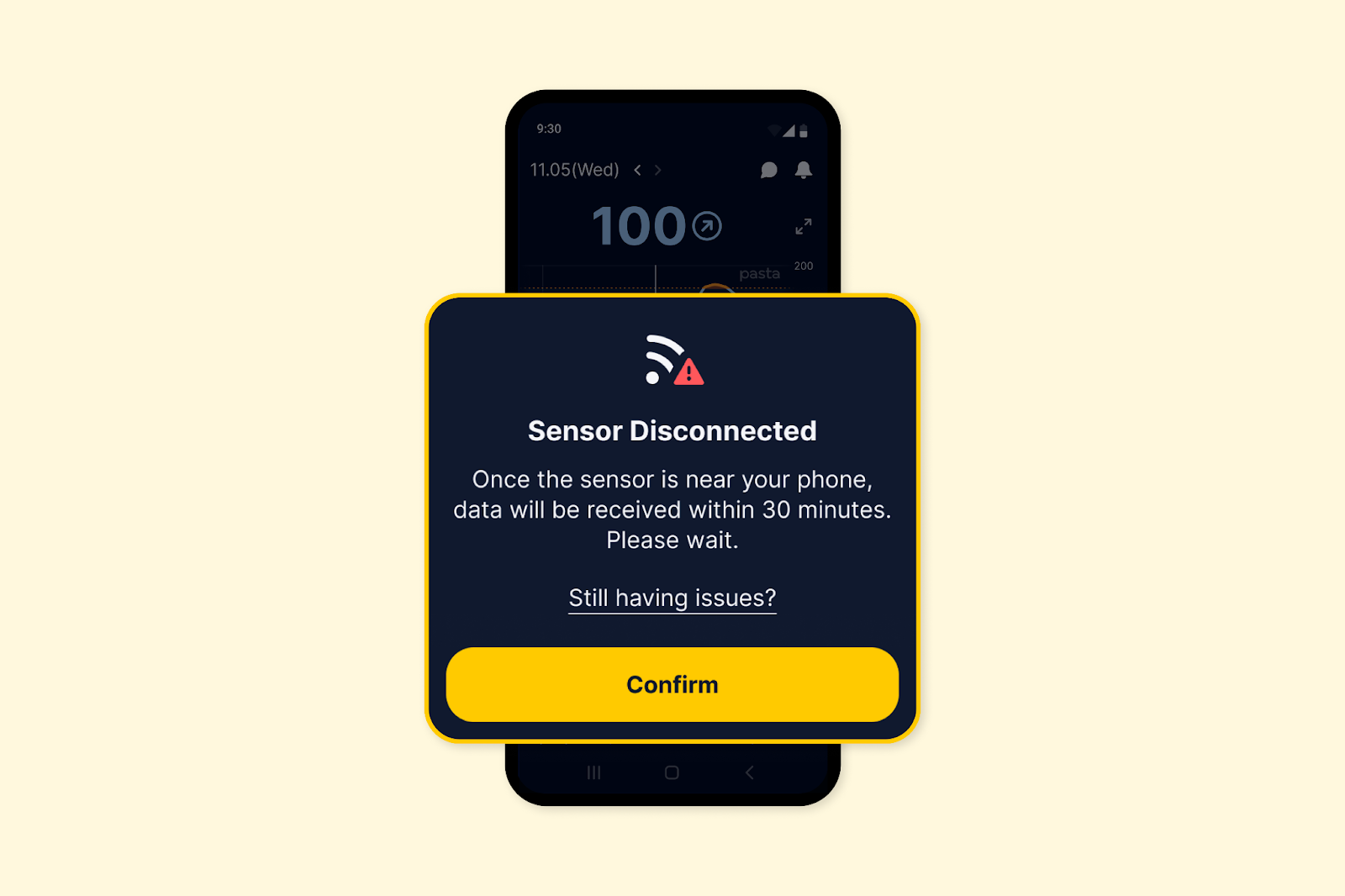
Why Does the Connection Get Interrupted?
Your sensor may disconnect for the following reasons:
-
Bluetooth on your smartphone is turned off
-
Bluetooth permission for the PASTA app is disabled
-
The distance between the sensor and smartphone is too far
-
A metal object or wall is blocking communication between the sensor and smartphone
-
There is a strong electromagnetic interference nearby
-
The sensor manufacturer's app is installed on your smartphone (e.g., CareSense Air, Dexcom G7, Dexcom G6)
In most cases, glucose readings will resume within 30 minutes if the following conditions are met:
-
Your smartphone is close to the sensor
-
Bluetooth on your smartphone is turned on
-
Bluetooth permission for the PASTA app is enabled
-
No sensor manufacturer apps are installed on your phone
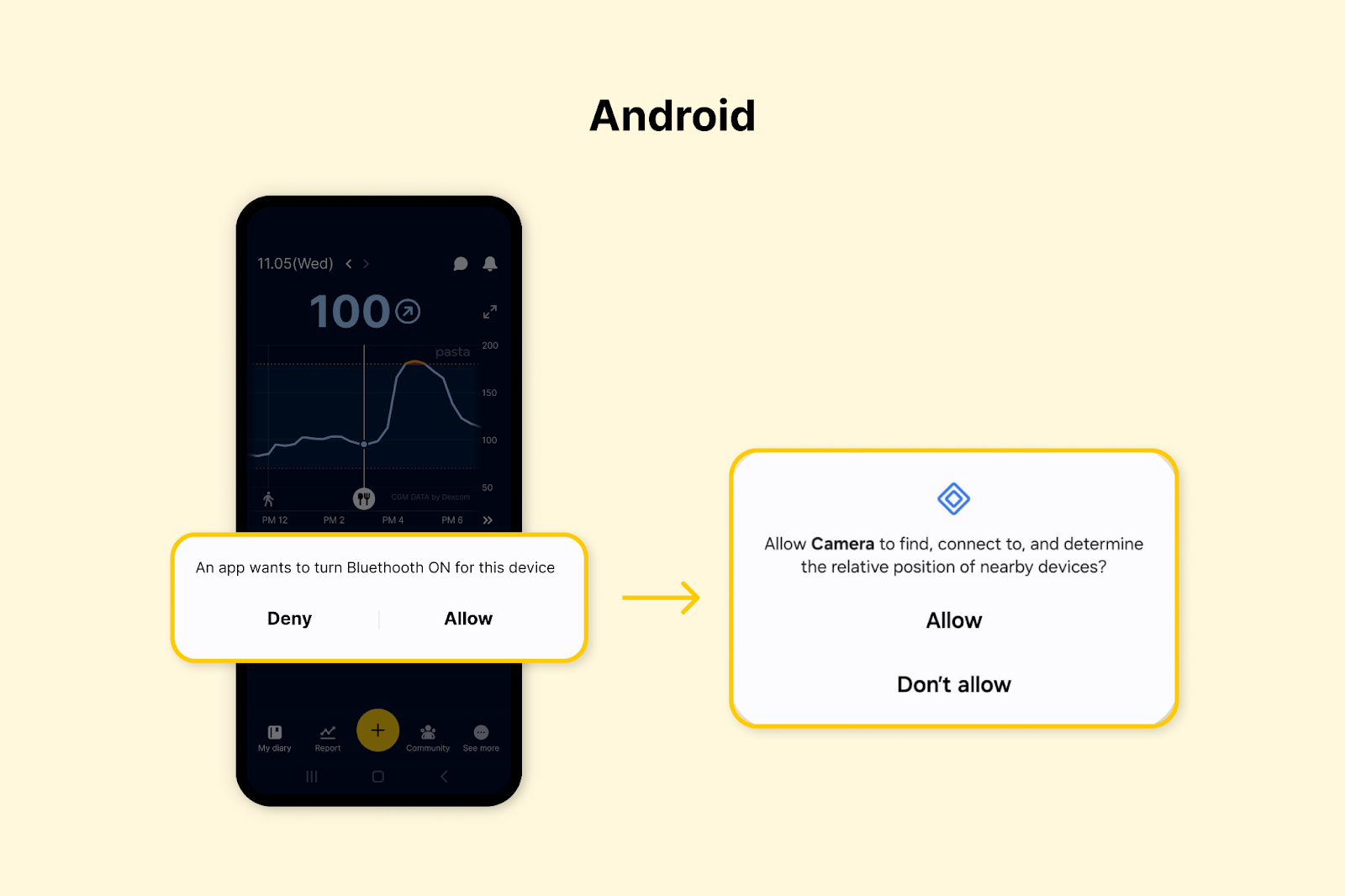
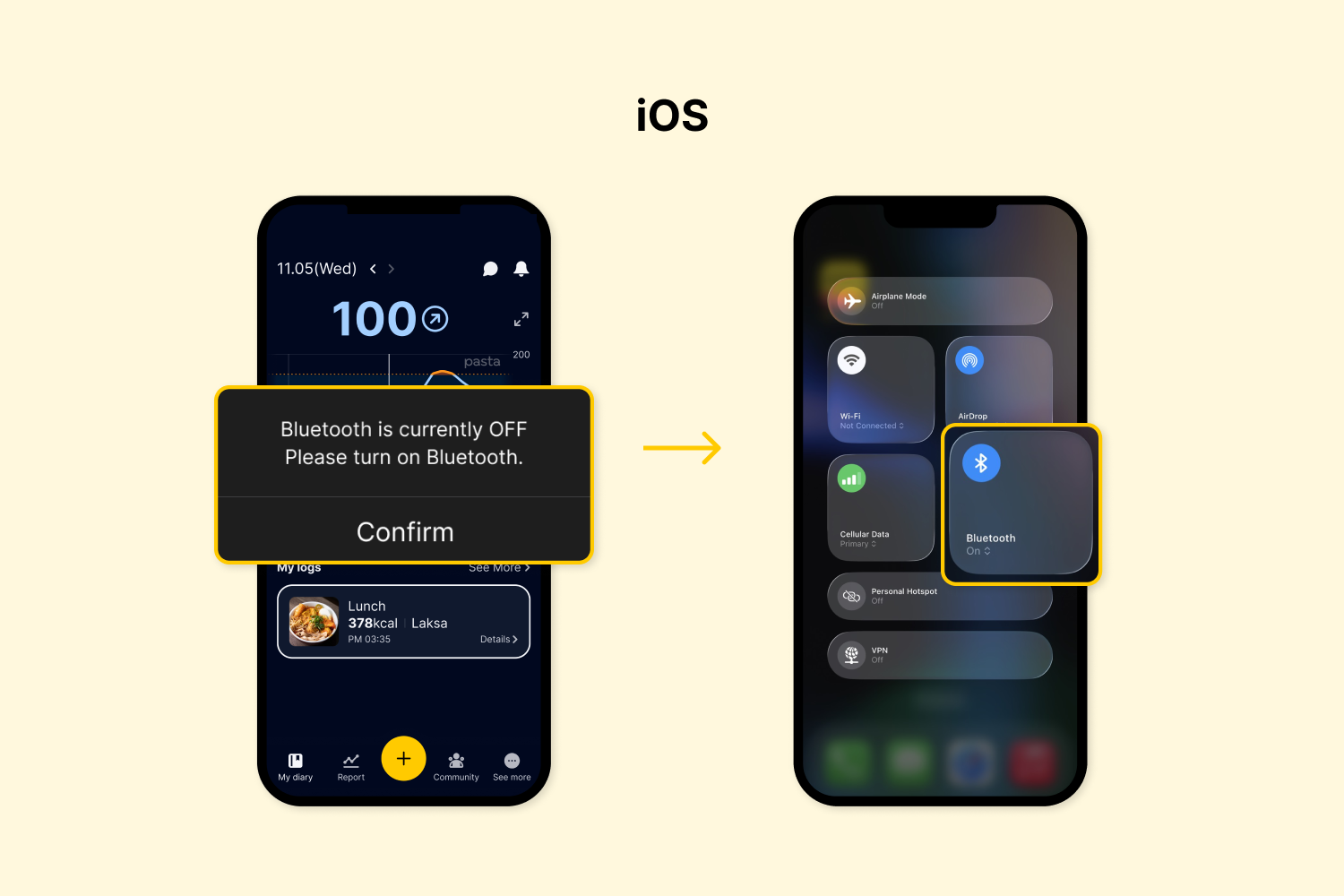
If Bluetooth Is Turned Off or PASTA’s Bluetooth Permission Is Disabled, You Will See the Following Notification in the App
[Android]
If Bluetooth is turned off or the PASTA app does not have Bluetooth permission, please tap ‘Allow’ to enable Bluetooth connectivity for PASTA.
[iPhone]
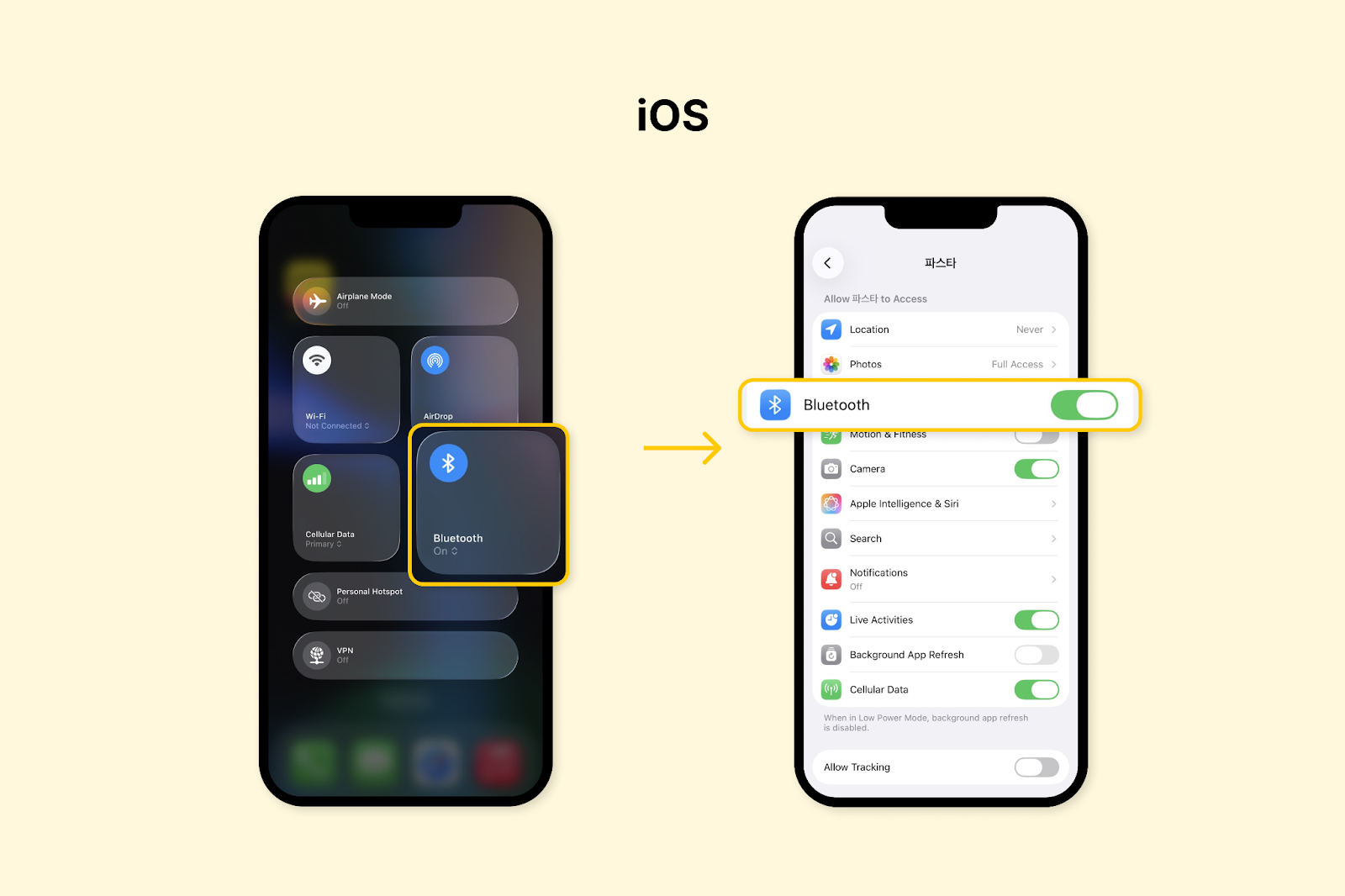
If Bluetooth is turned off or the PASTA app does not have Bluetooth permission, follow the steps shown in the image to enable Bluetooth connectivity for PASTA.
Q. Will I lose data during the time the sensor is disconnected?
A. CareSense Air can store up to 12 hours of glucose data, and Dexcom G7 can store up to 24 hours. Once the connection is restored, all glucose readings recorded during the disconnection period will be transferred to the app. However, data stored beyond each device’s data storage duration may not be retrievable.
Q. It’s still not reconnecting after some time. What should I do?
A. If the alert continues for more than 30 minutes and the issue is not resolved, try the following steps in order:
-
Keep your smartphone close to the sensor.
-
Make sure your smartphone Bluetooth is turned on.
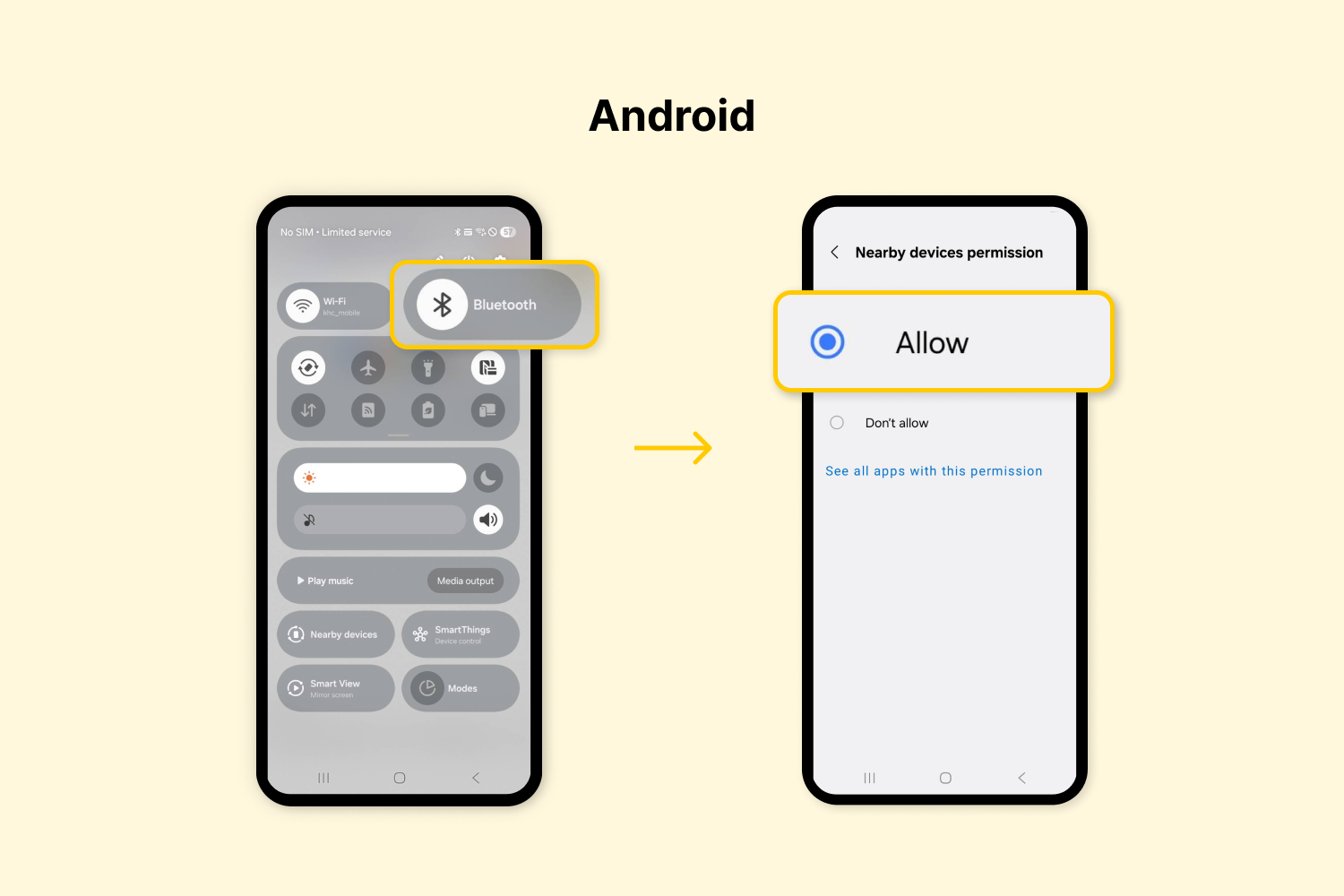
[Android]
-
Confirm that your smartphone Bluetooth is turned on.
-
Check [Settings > Apps > PASTA > Permissions > Nearby Devices] and ensure it is set to ‘Allow.’
* For Android OS versions below 12, check [Settings > Apps > PASTA > Permissions > Location] and ensure it is set to ‘Allow all the time.’
[iPhone]
-
Confirm that your smartphone Bluetooth is turned on.
-
Go to [Settings > PASTA > Allow PASTA to Access], and ensure Bluetooth is set to ‘Allow.’
-
If any sensor manufacturer apps are installed on your phone, uninstall them. These apps may interfere with the connection by continuously scanning for the sensor.
-
Apps that may cause interference: CareSense Air, Dexcom G6 mg/dL DXCM9, Dexcom G7
-
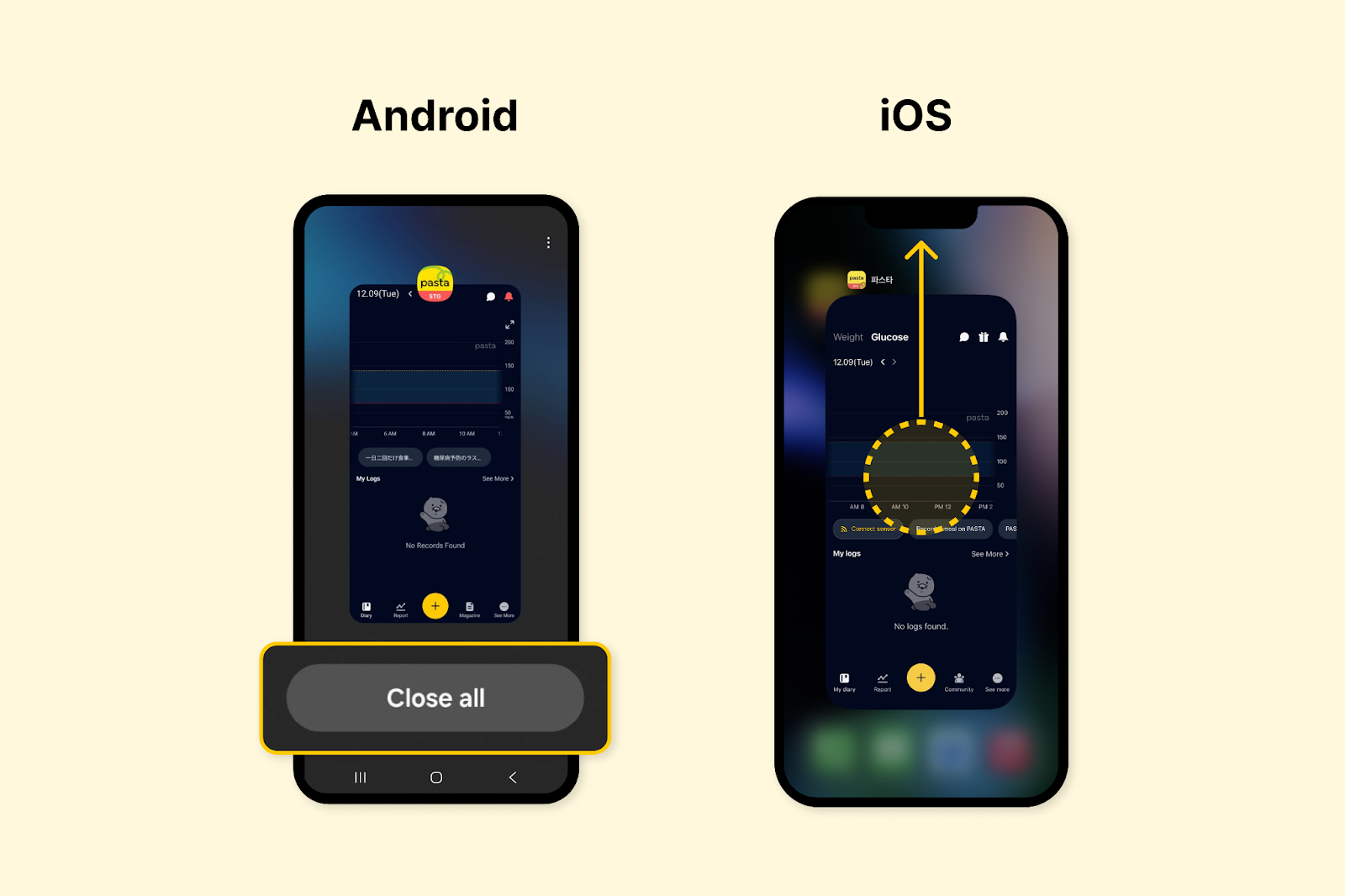
Please close the PASTA app completely and then reopen it.
-
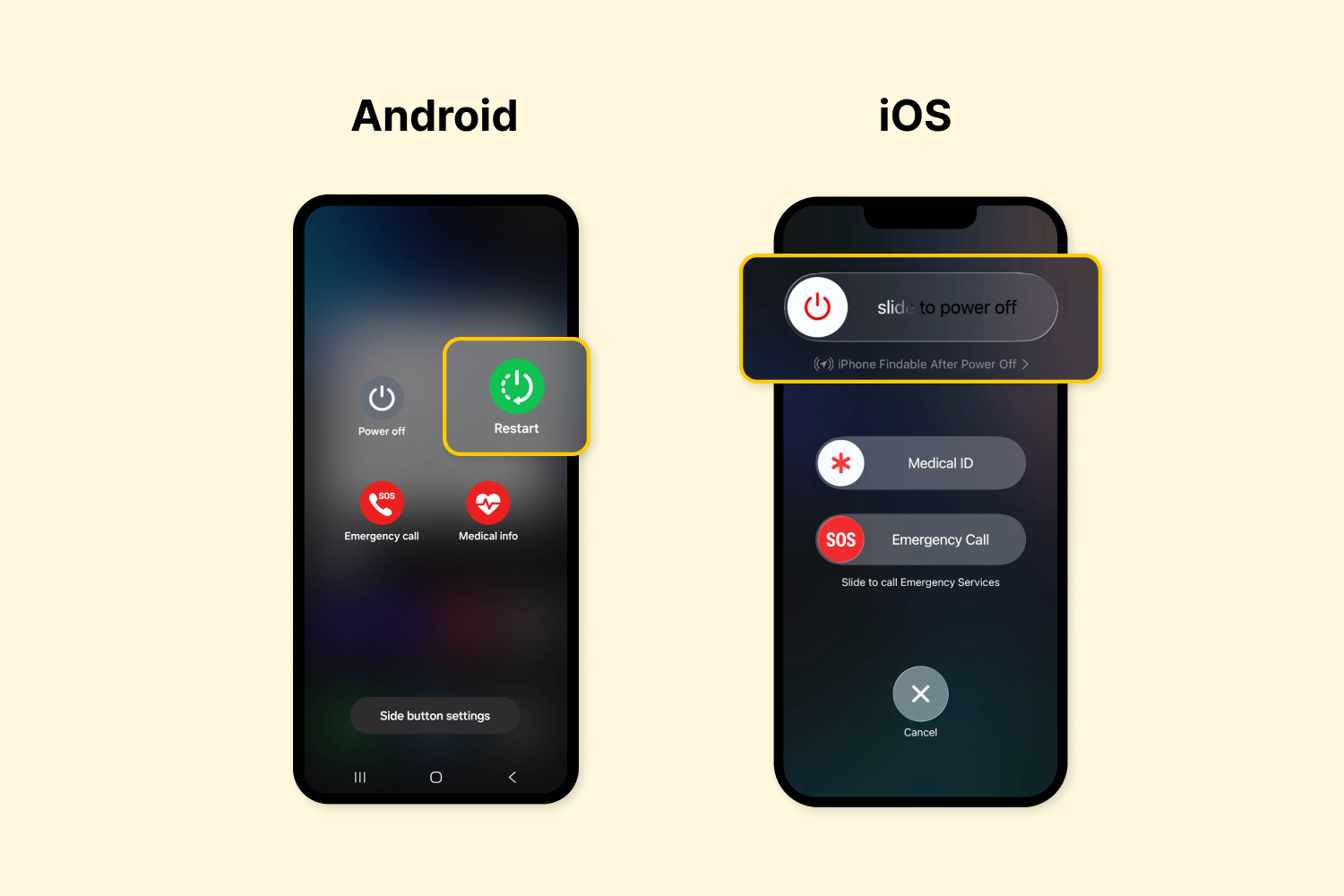
Turn off your smartphone and then turn it back on.
-
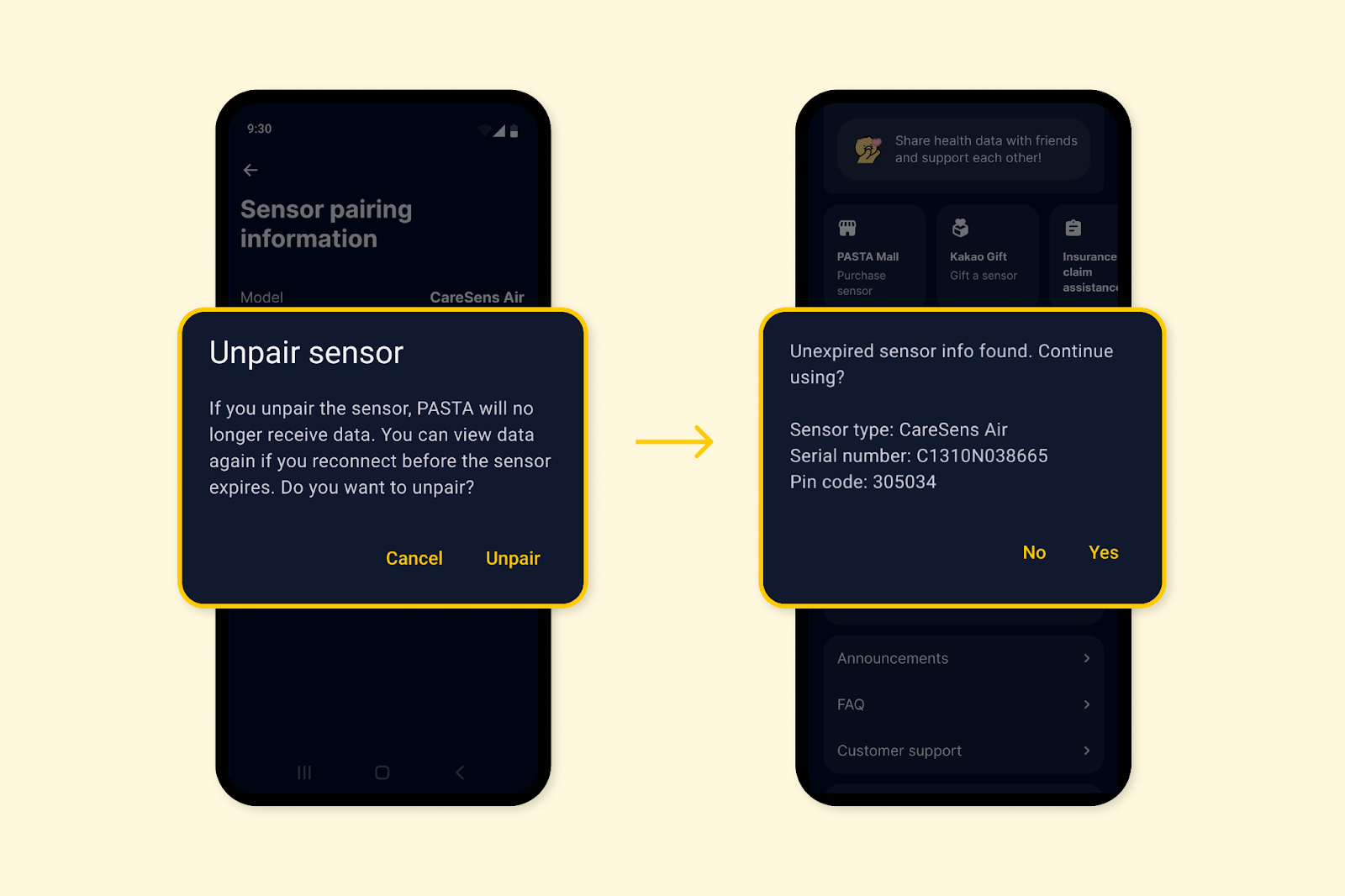
Disconnect and then reconnect the sensor.
-
For CareSense Air sensors, reconnecting may be difficult if you switch to a different smartphone. Please reconnect using the same smartphone.
If you have followed all the steps above but the connection issue persists or the sensor continues to show errors, please contact our support team. (for the Korean market)
-
Operating Hours: Monday–Friday, 9:00–18:00 (Lunch break: 12:00–13:00)
-
Phone: 031-629-1156
-
Email: pastacs@kakaohealthcare.com
KakaoTalk Channel: Search for @KakaoHealthcarePASTA in KakaoTalk Friend Search.